What Is Mobile Accessibility Testing?

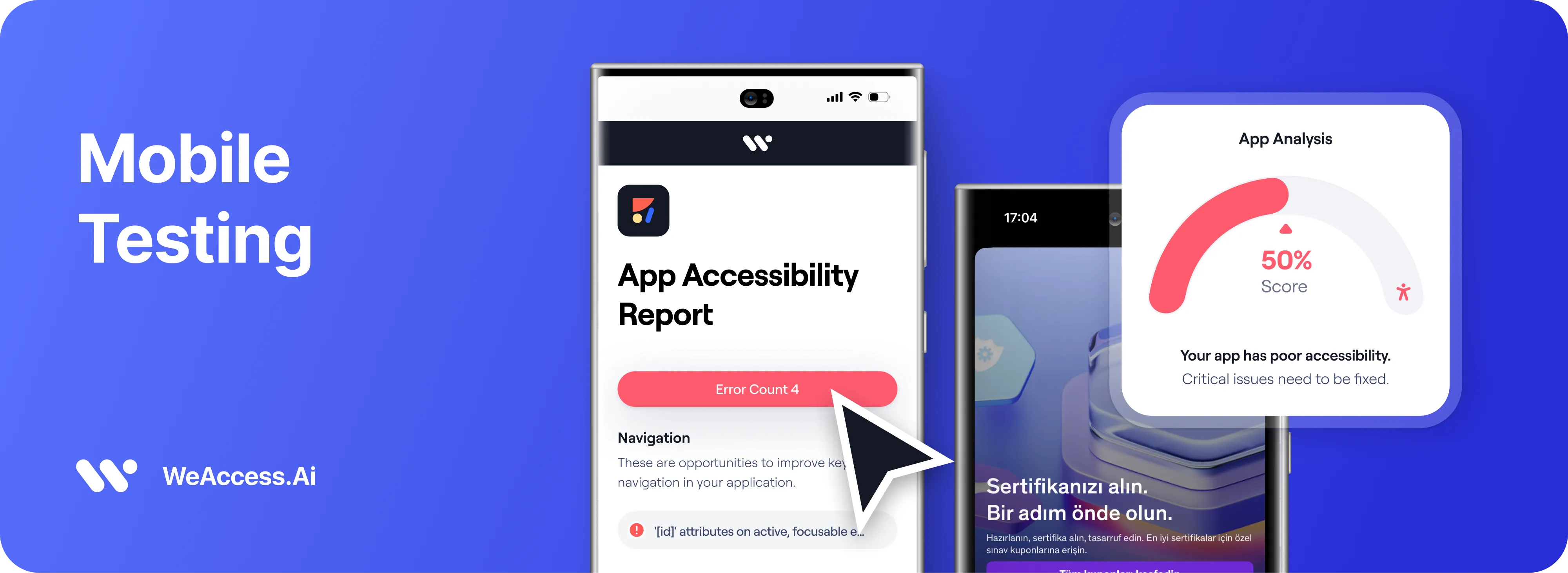
Mobile accessibility testing evaluates whether mobile apps and websites are usable by people with disabilities across different devices and assistive technologies. Following WCAG 2.2 guidelines, testing combines automated scans and manual checks for screen reader compatibility, touch target size, keyboard navigation, and color contrast.
How Do You Perform Mobile Accessibility Testing?
Perform mobile accessibility testing by combining automated accessibility testing with manual checks on real devices. Evaluate screen reader support, keyboard navigation, color contrast, touch targets, and form labels against WCAG 2.2. Test key user journeys on both iOS and Android, document barriers, prioritize fixes, and retest after updates to confirm that accessibility issues are resolved.
Mobile Accessibility Testing Checklist
Plan: Identify essential screens and user journeys.
Automate: Run accessibility analyzers to detect common issues.
Test manually: Use VoiceOver on iOS and TalkBack on Android.
Verify: Check contrast, text resizing, touch targets, and alternative gestures.
Fix and retest: Resolve barriers and validate the complete user journey.
What Standards Apply to Mobile Accessibility Testing?
The primary standard behind most mobile accessibility guidelines is the Web Content Accessibility Guidelines (WCAG) 2.2. It provides criteria for making mobile apps and websites more accessible to people with disabilities.
What Should You Test for Mobile Accessibility?
Effective mobile accessibility testing checks whether users with disabilities can navigate and interact with mobile apps according to established accessibility guidelines, such as WCAG 2.2. Focus on touch targets, color contrast, and semantic structure to identify barriers that affect usability across different devices and assistive technologies.
Touch targets: Ensure interactive elements are large enough and sufficiently spaced; WCAG 2.2 Success Criterion 2.5.8 generally specifies a minimum of 24 × 24 CSS pixels, subject to exceptions.
- Color contrast: Verify that normal text achieves at least 4.5:1 contrast and large text achieves 3:1 under WCAG AA.
- Semantics: Check accessible names, roles, states, headings, form labels, and screen reader announcements.
- Navigation: Test keyboard access, focus order, gestures, and alternatives to complex interactions.
- Text and layout: Check text resizing, orientation changes, and content reflow on smaller screens.
Which Tools Can Be Used for Mobile Accessibility Testing?
Mobile accessibility testing tools help teams identify usability barriers through automated scans, accessibility inspectors, and manual testing. An accessibility scanner can detect common issues, while platform-specific inspection tools help evaluate interface semantics, accessible labels, and screen reader behavior. Combining automated accessibility testing with real-device checks provides a more complete evaluation against WCAG guidelines.
How Do You Test Mobile Accessibility on Android and iOS?
Mobile accessibility testing should cover Android, iOS, and cross-platform apps on real devices to identify barriers that affect people with disabilities. Use TalkBack on Android and VoiceOver on iOS to test screen reader navigation, accessible labels, focus order, touch targets, and dynamic text sizing. For a mobile application built with a cross-platform framework, test each operating system separately because accessibility behavior can vary by platform.
Android, iOS, and Cross-Platform Testing Checklist
Android: Enable TalkBack and use Accessibility Scanner to check labels, touch targets, contrast, and navigation order.
iOS: Test with VoiceOver and use Apple Accessibility Inspector to identify unlabeled controls, clipped text, and contrast issues.
Cross-platform: Repeat tests on both operating systems and across different screen sizes, operating system versions, and devices.
Real-world workflows: Verify that users can complete essential tasks independently, from signing in to submitting a form or completing a purchase.
How Do You Test Accessibility on Android?
For mobile accessibility testing on Android, enable TalkBack to evaluate screen reader navigation, spoken labels, and focus order. Use the Accessibility Scanner to identify potential issues with touch targets, contrast, and content labels, then verify the results manually on a real device.
How Do You Test Accessibility on iOS?
For mobile accessibility testing on iOS, enable VoiceOver to check spoken feedback, navigation, and accessible names. Use Apple’s Accessibility Inspector to inspect interface elements and identify missing labels or other accessibility barriers. Retest key user journeys with different text sizes and display settings.
How Do You Perform Cross-Platform Accessibility Testing?
Cross-platform accessibility testing checks whether a mobile application delivers a consistent, accessible experience across Android and iOS devices. Test screen readers, touch targets, color contrast, text resizing, focus order, and essential user journeys on both platforms, using real devices where possible. Combine automated checks with manual testing to identify platform-specific barriers and verify compliance with WCAG 2.2.
What Are the Types of Mobile Accessibility Testing?
The main mobile accessibility testing methods are automated testing and manual accessibility testing, often supported by assistive technology and usability evaluations. Automated tools identify common technical issues quickly, while manual testing verifies real interactions, screen reader behavior, and whether users with disabilities can complete essential tasks. Combining these accessibility testing methods provides broader coverage than relying on either approach alone.
- Automated testing: Scans interfaces for detectable issues such as missing labels, insufficient contrast, and small touch targets.
- Manual accessibility testing: Evaluates navigation, gestures, focus order, and screen reader announcements.
- Assistive technology testing: Uses VoiceOver, TalkBack, and switch controls to assess compatibility.
- Usability testing with people with disabilities: Reveals practical barriers during real mobile tasks.
Is your mobile app accessible? Find out which issues to fix first. Start your free check at mobileappaccessibility.net