Mobile Keyboard Navigation: How to Support Keyboards in Android and iOS Apps

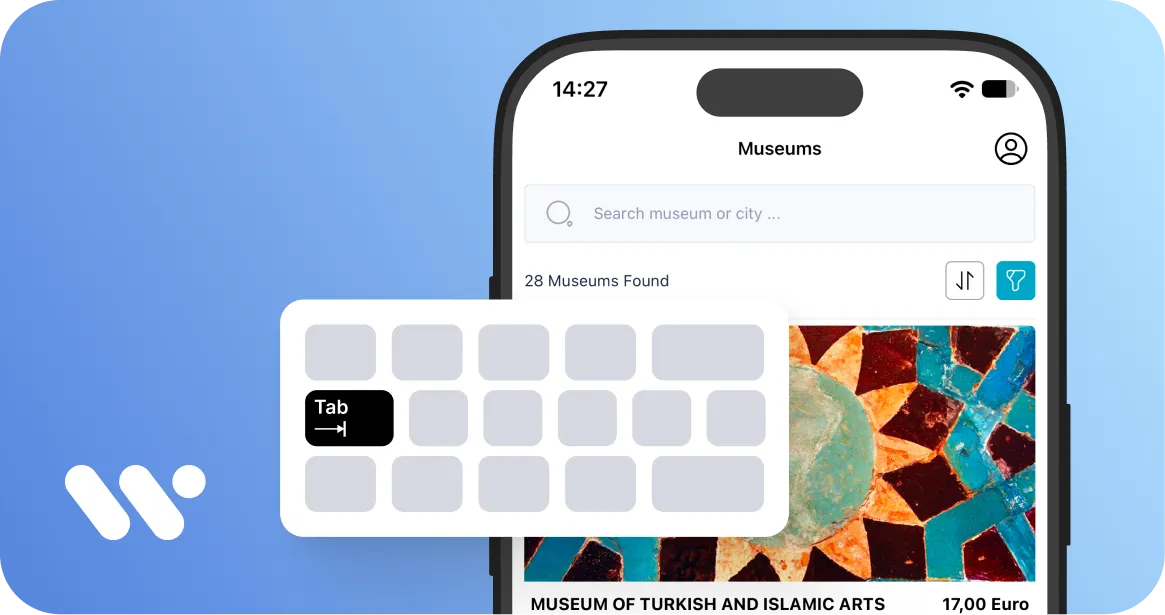
Mobile keyboard navigation lets people use an app with an external keyboard instead of touch. To support it, every interactive element must be reachable, focus must move in a logical order, and users must always see which element has focus. This matters for people who connect Bluetooth or USB keyboards, and for switch users whose devices rely on the same focus system. It is also a core part of WCAG for mobile apps.
Key practices:
- Use standard platform components, which come with keyboard support built in.
- Define a logical focus order for forms, menus, and dialogs.
- Make custom controls focusable and give them a visible focus state.
- Test critical flows with a physical keyboard on real devices.
What Is Mobile Keyboard Navigation Accessibility?
Mobile keyboard navigation accessibility means a mobile app or website can be fully operated with a keyboard, without relying on touch. WCAG 2.1.1 Keyboard requires all functionality to work through a keyboard interface, and 2.1.2 No Keyboard Trap requires that focus can always move away from any component. Visible focus (2.4.7) and a logical focus order (2.4.3) make that navigation usable in practice.
Who Relies on Keyboard Navigation on Mobile Devices?
Several groups depend on keyboard access:
- People with motor disabilities who find precise touch gestures difficult and use an external keyboard instead.
- Switch users, because Android Switch Access and iOS Switch Control move through the same focusable elements a keyboard does.
- Screen reader users who pair a keyboard with TalkBack or VoiceOver.
- Tablet and Chromebook users who work with a keyboard attached for productivity.
When keyboard support fails, all of these users can get stuck at the same point.
How Does Physical Keyboard Navigation Work in Android Apps?
Android lets users connect a Bluetooth or USB keyboard and move focus between interactive elements. The system manages focus automatically for standard controls, and developers can adjust it for custom interfaces. Android’s guidance recommends testing main task flows with Tab and arrow keys and providing a clear, visible focus state.
Which Keyboard Controls Should Android Apps Support?
Android apps should support the keys users expect for moving focus and activating controls:
| Keyboard ControlTypical Use in Android AppsKey References | ||
| Tab / Shift + Tab | Move forward or backward through focusable elements | Android keyboard navigation guidance |
| Arrow keys | Move between controls, especially in lists and grids | Android Developers |
| Enter | Confirm input or activate the focused control | Android input compatibility guidance |
| Spacebar | Activate controls or toggle media playback | Android Developers |
| Escape | Close dialogs, menus, or temporary states | Common convention; behavior should match the app |
| D-pad | Navigate up, down, left, and right on TVs and some devices | Android directional navigation guidance |
| Keyboard shortcuts | Speed up frequent actions | WCAG 2.1.4 Character Key Shortcuts |
How Does Keyboard Navigation Work in iOS Apps?
On iPhone and iPad, Full Keyboard Access lets users navigate and control apps with a connected keyboard. Users turn it on in the device’s accessibility settings, then move between elements with Tab and arrow keys. Standard UIKit and SwiftUI controls support it by default. Custom controls need to be focusable and expose a clear accessibility label, so the focus indicator lands on them and users know what they are activating.
How Can You Test Keyboard Navigation in a Mobile App?
Testing combines automated checks with hands-on keyboard use, because automated tools cannot judge whether the focus order makes sense. Connect an external keyboard and complete each critical flow, such as login, search, and checkout, using only the keyboard. On Android, automated checks can run during UI tests through Espresso AccessibilityChecks or Compose accessibility checks.
| Test AreaWhat to VerifyKey References | ||
| Reachability | Every interactive control can receive focus | WCAG 2.1.1 Keyboard |
| Focus order | Focus follows a logical sequence | WCAG 2.4.3 Focus Order |
| Focus visibility | The focused element is always clearly marked | WCAG 2.4.7 Focus Visible |
| No traps | Focus can always leave menus, dialogs, and custom components | WCAG 2.1.2 No Keyboard Trap |
| Automated checks | UI tests flag common issues early | Espresso AccessibilityChecks; Compose accessibility checks |
| Real devices | Critical flows work with an external keyboard on Android and iOS | Android and Apple testing guidance |
Frequently Asked Questions
Does WCAG require keyboard support in mobile apps?
Yes. WCAG 2.1.1 Keyboard applies to mobile apps, and W3C’s draft WCAG2Mobile note explains how it applies to devices with external keyboards and switch access. Laws that reference WCAG for apps, such as ADA Title II, therefore include keyboard support.
How do I test keyboard navigation on Android?
Connect a Bluetooth or USB keyboard, then complete key tasks using Tab, arrow keys, Enter, and Escape. Check that focus is always visible, follows a logical order, and never gets trapped. Add Espresso or Compose accessibility checks to your UI tests for automated coverage.
What is Full Keyboard Access on iOS?
Full Keyboard Access is an iOS and iPadOS accessibility feature that lets users control their device and apps with a connected keyboard. It is turned on in the device’s accessibility settings, and standard UIKit and SwiftUI controls support it automatically.